Backup Infrastructure: Garage S3, ZFS, and Longhorn Backup Targets
Building the local backup layer for the Bletchley cluster: ZFS mirror on rock3's SATA SSDs, Garage S3, NFS, and Longhorn recurring backups.
Introduction
Until now, the Bletchley cluster had no backups. Workloads were running, Longhorn was managing persistent volumes across the NVMe disks, and everything was working — but if a volume got corrupted, a pod deleted the wrong data, or a node failed badly enough, there was nothing to restore from. That's an acceptable state for a brand-new cluster still finding its feet. It stops being acceptable the moment you start caring about what's on it.
This post is the first in a three-part series covering backup and restore on the Bletchley cluster. It covers the storage infrastructure: two SATA SSDs sitting unused in rock3 since the hardware arrived, turned into a ZFS mirror pool, running both a Garage S3-compatible object store and an NFS server. Longhorn's backup target gets pointed at Garage, and recurring backup jobs start running automatically.
The goal coming in was a proper 1-2-3 backup chain: snapshot in Longhorn, backup to local S3 on the SATA SSDs, and offload to a remote location.
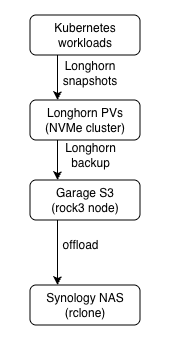
This post is steps one and two. The offload and restore validation come in the next two posts.
🏠 This is part of the Homelab Journey series - building a production Kubernetes cluster from scratch.
- Certificate Management
- Backup Infrastructure: Garage S3, ZFS, and Longhorn Backup Targets (you are here)
- Offloading Backups to the Synology
This post assumes Longhorn is installed and running on the cluster, and that cert-manager is configured. The earlier posts in this series cover both. rock3 needs one additional Talos extension —zfs— which requires upgrading it to a new image. The other three extensions (nfsd,iscsi-tools,util-linux-tools) were already present from the original cluster build.
The Decision: Why Garage and NFS Together
Before getting into implementation, it's worth explaining the storage choice — because the combination of Garage and NFS isn't the obvious first option when you're setting up a Longhorn backup target.
The SATA SSDs on rock3 serve two independent purposes. Garage provides an S3-compatible object store — this is what Longhorn uses as its backup target, and what future S3-native workloads like Nextcloud or Immich will use. NFS Ganesha provides a traditional filesystem share via the nfsd extension — for workloads that need ReadWriteMany volumes and don't speak S3. Both services run independently on top of separate ZFS datasets carved from the same mirror pool. Garage never touches the NFS dataset and vice versa.
Longhorn natively supports NFS as a backup target — the SATA SSDs could have been formatted, exported over NFS, and pointed at directly. The reason to add Garage is future-proofing: workloads like Nextcloud and Immich have native S3 support and expect an object store, not a filesystem. Running both NFS Ganesha and Garage from the same ZFS pool covers both use cases without doubling the storage complexity.
Garage was chosen over MinIO for two reasons: licensing and weight. MinIO's AGPL license can create complications if you embed it in software or distribute derivative systems. That's not usually a concern for a homelab, but Garage avoids the question entirely by using a permissive open-source license. Beyond the licensing, it offers a native ARM64 build and a significantly lighter resource footprint for a single-node homelab setup.
Phase 1: Upgrading rock3
New Talos Image
rock3 is the only node that will run Garage and NFS — the SATA SSDs are physically attached there. The original cluster image already included nfsd, iscsi-tools, and util-linux-tools on all nodes. rock3 needs one addition: zfs. A new schematic is generated with all four extensions listed — the schematic must declare everything, not just the delta — and rock3 alone is upgraded to that image.
overlay:
  image: siderolabs/sbc-rockchip
  name: turingrk1
customization:
  systemExtensions:
    officialExtensions:
      - siderolabs/iscsi-tools
      - siderolabs/nfsd
      - siderolabs/util-linux-tools
      - siderolabs/zfs
Schematic ID: 2c352075604cce8a0d862dc12b7290ae44755624ff55164ff5fb41f2725a168f
The upgrade targets rock3 only and uses --preserve to keep the existing machine config:
talosctl -n rock3.vluwte.nl upgrade \
  --image factory.talos.dev/metal-installer/2c352075604cce8a0d862dc12b7290ae44755624ff55164ff5fb41f2725a168f:v1.12.4 \
  --preserve
The upgrade takes a few minutes. The node reboots, and during the ZFS service startup there's a pause while the extension initialises. After the node is back up, verify the extensions are loaded:
talosctl get extensions --nodes rock3.vluwte.nl
Expected output includes:
rock3.vluwte.nl   runtime   ExtensionStatus   0   1   iscsi-tools        v0.2.0
rock3.vluwte.nl   runtime   ExtensionStatus   1   1   nfsd               v1.12.4
rock3.vluwte.nl   runtime   ExtensionStatus   2   1   util-linux-tools   2.41.2
rock3.vluwte.nl   runtime   ExtensionStatus   3   1   zfs                2.4.0-v1.12.4
Identifying the SATA SSDs
Before creating any ZFS pool, confirm which block devices are the SATA SSDs:
talosctl get discoveredvolumes -n rock3.vluwte.nl
The two SATA SSDs showed up as /dev/sda and /dev/sdb, both 960GB.
Phase 2: ZFS Pool and Datasets
Loading the ZFS Kernel Module
The zfs extension being present doesn't mean the kernel module loads automatically. The first attempt to use ZFS confirmed this immediately:
kubectl -n kube-system debug -it --profile sysadmin --image=alpine node/rock3
/ # chroot /host zpool list
The ZFS modules cannot be auto-loaded.
Try running 'modprobe zfs' as root to manually load them.
The fix is a machine config patch that tells Talos to load zfs at boot. Create zfs.patch.yaml:
machine:
  kernel:
    modules:
      - name: zfs
Apply the patch to rock3:
talosctl patch machineconfig --nodes rock3 --patch @zfs.patch.yaml
No reboot required — Talos applies the change live. Confirm the module is loaded:
talosctl read /proc/modules --nodes rock3 | grep zfs
Expected output:
zfs 4935680 0 - Live 0x0000000000000000 (PO)
spl 122880 1 zfs, Live 0x0000000000000000 (O)
With the module loaded, the debug pod now works:
/ # chroot /host zpool status
no pools available
no pools available is the correct response — the module is working, there are just no pools yet.
Creating the Pool
All ZFS work happens inside the same debug pod used to verify the module. The pool is created with a mountpoint set directly in the zpool create command:
/ # chroot /host zpool create \
  -O mountpoint="/var/mnt/datapool" \
  datapool \
  mirror \
  /dev/sda /dev/sdb
Verify the pool came up healthy:
/ # chroot /host zpool status
  pool: datapool
 state: ONLINE
config:
    NAME        STATE     READ WRITE CKSUM
    datapool    ONLINE       0     0     0
      mirror-0  ONLINE       0     0     0
        sda     ONLINE       0     0     0
        sdb     ONLINE       0     0     0

errors: No known data errors
~923GB usable after mirror overhead.
Creating the Datasets
Two datasets with independent quotas, created and configured from inside the same debug pod:
/ # chroot /host zfs create datapool/garage
/ # chroot /host zfs create datapool/nfs
/ # chroot /host zfs set quota=500G datapool/garage
/ # chroot /host zfs set quota=300G datapool/nfs
The garage dataset gets 500GB — enough for Longhorn backups plus future S3-native workloads. The nfs dataset gets 300GB for filesystem workloads. Both share the same underlying mirror pool.
Verify the layout:
/ # chroot /host zfs list
NAME              USED  AVAIL  REFER  MOUNTPOINT
datapool          210K   860G    25K  /var/mnt/datapool
datapool/garage    24K   500G    24K  /var/mnt/datapool/garage
datapool/nfs       24K   300G    24K  /var/mnt/datapool/nfs
Exit the debug pod and delete it — it's no longer needed for ZFS setup.
Verifying Automatic Mounts After Reboot
ZFS datasets mount automatically at boot — when the zfs module loads and finds the pool on the disks, it mounts the datasets at the mountpoints embedded in the pool configuration. No extra Talos machine config is needed for this. The reboot is the proof:
talosctl reboot --nodes rock3
Watch for the node to come back up:
talosctl -n rock3.vluwte.nl dmesg --follow
Once it's back, confirm the datasets mounted automatically:
talosctl mounts -n rock3 | grep datapool
rock3   datapool          923.95     0.00       923.95          0.00%          /var/mnt/datapool
rock3   datapool/garage   536.87     0.00       536.87          0.00%          /var/mnt/datapool/garage
rock3   datapool/nfs      322.12     0.00       322.12          0.00%          /var/mnt/datapool/nfs
All three lines present without any manual intervention — the pool and both datasets mounted cleanly on boot. The reported available sizes are slightly larger than the configured quotas (500G and 300G) — this is normal ZFS behaviour. The quota limits how much data can actually be written; the available figure reflects remaining pool capacity visible to that dataset. Quota enforcement happens at write time.
Phase 3: NFS Server
With the NFS dataset mounted at /var/mnt/datapool/nfs, the next step is a Kubernetes NFS server that exports it to the rest of the cluster. This uses the nfs-ganesha-server-and-external-provisioner Helm chart — it runs NFS Ganesha inside a pod pinned to rock3, and provides a StorageClass that other pods can use to request ReadWriteMany volumes.
Add the Helm chart repository first:
helm repo add nfs-ganesha-server-and-external-provisioner \
  https://kubernetes-sigs.github.io/nfs-ganesha-server-and-external-provisioner/
helm repo update
All NFS config files live in ~/talos-cluster/bletchley/nfs/.
Namespace
# nfs-namespace.yaml
apiVersion: v1
kind: Namespace
metadata:
  name: nfs-server
  labels:
    pod-security.kubernetes.io/enforce: privileged
    pod-security.kubernetes.io/warn: privileged
    pod-security.kubernetes.io/audit: privileged
NFS Ganesha requires privileged access — the namespace label is required for the pod to start.
Pre-created PersistentVolume
The Helm chart creates a PVC for its /export directory. A pre-created PV with a claimRef ensures it binds to the right path on rock3:
# nfs-pv.yaml
apiVersion: v1
kind: PersistentVolume
metadata:
  name: data-nfs-server-provisioner-0
spec:
  capacity:
    storage: 300Gi
  accessModes:
    - ReadWriteOnce
  persistentVolumeReclaimPolicy: Retain
  hostPath:
    path: /var/mnt/datapool/nfs
  claimRef:
    namespace: nfs-server
    name: data-nfs-server-provisioner-0
  nodeAffinity:
    required:
      nodeSelectorTerms:
        - matchExpressions:
            - key: kubernetes.io/hostname
              operator: In
              values:
                - rock3
A few values here warrant explanation:
capacity.storage: 300Gi matches the quota set on the datapool/nfs ZFS dataset. Kubernetes uses this for bookkeeping; it doesn't enforce it at the filesystem level — ZFS quota does that.
accessModes: ReadWriteOnce — the NFS server pod itself only needs to mount this from one node (rock3). The ReadWriteMany capability comes from NFS Ganesha serving the data out over the network — Kubernetes doesn't see that layer.
persistentVolumeReclaimPolicy: Retain — if the PVC is deleted, the PV and its data are kept. Data on the ZFS pool should not disappear if something goes wrong with the Helm release.
hostPath.path: /var/mnt/datapool/nfs — points directly at the ZFS dataset mount on rock3. This is where NFS Ganesha reads and writes all data.
claimRef — pre-binds this PV to the specific PVC name the Helm chart will create (data-nfs-server-provisioner-0 in the nfs-server namespace). Without this, Kubernetes might bind it to a different PVC.
nodeAffinity — ensures this PV can only be used by a pod scheduled on rock3. Since the data physically lives on rock3's SATA SSDs, the pod must run there.
Helm Values
# nfs-values.yaml
nodeSelector:
  kubernetes.io/hostname: rock3

persistence:
  enabled: true
  storageClass: "-"
  size: 300Gi

storageClass:
  defaultClass: false
  name: nfs
nodeSelector: kubernetes.io/hostname: rock3 — pins the NFS server pod to rock3. Combined with the PV's nodeAffinity this ensures the pod always lands on the node where the data is.
persistence.enabled: true — tells the chart to use a PVC for its /export directory rather than ephemeral storage. Without this, data is lost on pod restart.
persistence.storageClass: "-" — the - explicitly disables dynamic provisioning for this PVC. The chart will create a PVC but won't ask any StorageClass to fulfill it — instead it will bind to the manually pre-created PV via the claimRef.
persistence.size: 300Gi — must match the PV's capacity exactly for the binding to succeed.
storageClass.defaultClass: false — the NFS StorageClass this chart creates should not become the cluster default. Longhorn is the primary storage; NFS is supplemental for ReadWriteMany workloads.
storageClass.name: nfs — the name workloads will reference in their PVCs when they want NFS-backed ReadWriteMany storage.
Apply the configurations and install the helm chart:
kubectl apply -f nfs-namespace.yaml
kubectl apply -f nfs-pv.yaml
helm install nfs-server-provisioner \
  nfs-ganesha-server-and-external-provisioner/nfs-server-provisioner \
  --namespace nfs-server \
  -f nfs-values.yaml
Verify the pod came up and the PVC bound correctly:
kubectl -n nfs-server get pods
kubectl -n nfs-server get pvc
kubectl get storageclass
A quick ReadWriteMany test confirms the provisioner works end to end:
kubectl apply -f - <<EOF
apiVersion: v1
kind: PersistentVolumeClaim
metadata:
  name: nfs-test
  namespace: default
spec:
  storageClassName: nfs
  accessModes:
    - ReadWriteMany
  resources:
    requests:
      storage: 1Gi
EOF

kubectl get pvc nfs-test
# STATUS: Bound — ReadWriteMany confirmed working
kubectl delete pvc nfs-test
Phase 4: Garage
Garage is the S3-compatible object store that will serve as Longhorn's backup target. It runs as a StatefulSet pinned to rock3, with data stored directly on the datapool/garage ZFS dataset via hostPath.
All Garage config files live in ~/talos-cluster/bletchley/garage/.
Secret Generation
Two secrets are needed — an RPC secret for intra-cluster Garage communication, and an admin token for the Garage admin API:
openssl rand -hex 32    # rpc_secret
openssl rand -base64 32 # admin_token
Both go into 1Password. Neither goes into git.
The garage-secret.yaml contains the full garage.toml as a Kubernetes Secret key — this avoids the init container complexity of environment variable substitution into a config file:
# garage-secret.yaml (gitignored — contains actual secrets)
apiVersion: v1
kind: Secret
metadata:
  name: garage-secrets
  namespace: garage
stringData:
  garage.toml: |
    metadata_dir = "/mnt/meta"
    data_dir = "/mnt/data"
    db_engine = "lmdb"
    replication_factor = 1

    rpc_bind_addr = "[::]:3901"
    rpc_public_addr = "garage.garage.svc.cluster.local:3901"
    rpc_secret = "YOUR_RPC_SECRET"

    [s3_api]
    s3_region = "garage"
    api_bind_addr = "[::]:3900"

    [s3_web]
    bind_addr = "[::]:3902"
    root_domain = ".web.garage"
    index = "index.html"

    [admin]
    api_bind_addr = "[::]:3903"
    admin_token = "YOUR_ADMIN_TOKEN"
Each setting is worth understanding, especially the ones that interact with the Kubernetes environment:
metadata_dir and data_dir — the two storage paths inside the container. metadata_dir is where Garage keeps its internal database (bucket listings, object indices, cluster state). data_dir is where the actual object data lives. Both map to the hostPath PVs defined earlier — /mnt/meta and /mnt/data inside the container resolve to /var/mnt/datapool/garage/meta and /var/mnt/datapool/garage/data on rock3.
db_engine = "lmdb" — the embedded database Garage uses for metadata. LMDB is the recommended engine for single-node setups: fast, lightweight, no external dependencies.
replication_factor = 1 — tells Garage not to replicate data across nodes. There's only one node in this setup, so this must be 1. Setting it higher than the number of nodes in the layout would prevent Garage from accepting writes.
rpc_bind_addr and rpc_public_addr — how Garage nodes communicate with each other internally. rpc_bind_addr is the address Garage listens on for incoming RPC connections. rpc_public_addr is the address other nodes would use to reach this one — set to the headless service DNS name so Garage can resolve it within the cluster. In a single-node setup this doesn't matter much, but Garage requires the value to be present. The rpc_secret is the shared key that authenticates these connections.
[s3_api] — the S3-compatible API that Longhorn (and future workloads) will use. s3_region = "garage" sets the region identifier — this must match the @garage part of the Longhorn backup target URL (s3://longhorn-backups@garage/) and the region value in the rclone config. It's an arbitrary string, but it must be consistent everywhere that references it. api_bind_addr = "[::]:3900" makes the S3 API listen on all interfaces on port 3900.
[s3_web] — a static website hosting feature that lets Garage serve public bucket contents directly over HTTP. Not used here, but the config block is required. The root_domain and index values are defaults.
[admin] — the admin API used by the garage CLI to manage buckets, keys, and layout. Port 3903, protected by the admin_token. All the garage bucket create and garage key create commands in the next steps call this API.
A garage-secret.yaml.example with placeholder values is committed to git. The real secret file is gitignored.
PersistentVolumes
Two PVs — one small for Garage metadata, one large for data — both pointing at rock3:
# garage-pv.yaml
apiVersion: v1
kind: PersistentVolume
metadata:
  name: garage-meta
spec:
  capacity:
    storage: 1Gi
  accessModes:
    - ReadWriteOnce
  persistentVolumeReclaimPolicy: Retain
  hostPath:
    path: /var/mnt/datapool/garage/meta
  claimRef:
    namespace: garage
    name: meta-garage-0
  nodeAffinity:
    required:
      nodeSelectorTerms:
        - matchExpressions:
            - key: kubernetes.io/hostname
              operator: In
              values:
                - rock3
---
apiVersion: v1
kind: PersistentVolume
metadata:
  name: garage-data
spec:
  capacity:
    storage: 500Gi
  accessModes:
    - ReadWriteOnce
  persistentVolumeReclaimPolicy: Retain
  hostPath:
    path: /var/mnt/datapool/garage/data
  claimRef:
    namespace: garage
    name: data-garage-0
  nodeAffinity:
    required:
      nodeSelectorTerms:
        - matchExpressions:
            - key: kubernetes.io/hostname
              operator: In
              values:
                - rock3
Garage stores metadata separately from object data — the two PVs reflect that split. Metadata (bucket listings, object indices, cluster state) is small and fast-access; a 1Gi volume is more than sufficient. Object data is large; 500Gi matches the quota on the datapool/garage ZFS dataset. Keeping them on separate volumes allows different sizing and makes future migrations easier — if I ever move Garage to larger disks, I can swap the data PV independently without touching the metadata.
A few fields worth explaining:
hostPath — points directly at the ZFS dataset mount on rock3. This is acceptable here because the pod is pinned to rock3 via nodeSelector and the underlying data is already managed by ZFS. In a multi-node setup this would require a proper CSI driver instead — hostPath only works safely when you can guarantee the pod will always land on the same node.
persistentVolumeReclaimPolicy: Retain — if the PVC or the StatefulSet is deleted, the PV and its data are kept. Garage data should not disappear if something goes wrong with the Kubernetes resources on top of it.
claimRef — pre-binds each PV to the specific PVC name the StatefulSet's volumeClaimTemplates will create (meta-garage-0 and data-garage-0). Without this, Kubernetes might bind these PVs to a different PVC if one happens to match the size and access mode.
nodeAffinity — ensures each PV can only be scheduled on rock3. Combined with the StatefulSet's nodeSelector, this creates a hard guarantee: the pod runs on rock3, and the volumes it claims can only be fulfilled by rock3. The data physically lives there — Kubernetes enforces that nothing can accidentally schedule it elsewhere.
StatefulSet
The StatefulSet defines two services (headless for the StatefulSet, ClusterIP for S3 access) and the Garage container itself:
# garage-statefulset.yaml (excerpt)
apiVersion: v1
kind: Service
metadata:
  name: garage-s3
  namespace: garage
spec:
  selector:
    app: garage
  ports:
    - name: s3-api
      port: 3900
      targetPort: 3900
---
apiVersion: apps/v1
kind: StatefulSet
metadata:
  name: garage
  namespace: garage
spec:
  replicas: 1
  template:
    spec:
      nodeSelector:
        kubernetes.io/hostname: rock3
      containers:
        - name: garage
          image: dxflrs/arm64_garage:v2.2.0
          volumeMounts:
            - name: config
              mountPath: /etc/garage.toml
              subPath: garage.toml
            - name: meta
              mountPath: /mnt/meta
            - name: data
              mountPath: /mnt/data
      volumes:
        - name: config
          secret:
            secretName: garage-secrets
The image is dxflrs/arm64_garage:v2.2.0 — the ARM64-specific build. This is important: the generic garage image is x86_64 only and will not run on the RK1 modules.
Apply everything:
kubectl apply -f garage-namespace.yaml
kubectl apply -f garage-pv.yaml
kubectl apply -f garage-secret.yaml
kubectl apply -f garage-statefulset.yaml
Cluster Layout
Garage requires a cluster layout to decide where object data is stored and how it should be replicated across nodes. Even in a single-node setup, the layout must be explicitly applied before Garage will accept data.
Check the logs first — Garage prints its node ID on startup, and also surfaces any warnings worth knowing about:
kubectl -n garage logs garage-0
Full startup log output
2026-03-08T11:43:55.727897Z  INFO garage::server: Loading configuration...
2026-03-08T11:43:55.728367Z  INFO garage::server: Initializing Garage main data store...
2026-03-08T11:43:55.728421Z  INFO garage_model::garage: Opening database...
2026-03-08T11:43:55.728452Z  INFO garage_db::lmdb_adapter: Opening LMDB database at: /mnt/meta/db.lmdb
2026-03-08T11:43:55.729082Z  INFO garage_model::garage: Initializing RPC...
2026-03-08T11:43:55.729114Z  INFO garage_model::garage: Initialize background variable system...
2026-03-08T11:43:55.729120Z  INFO garage_model::garage: Initialize membership management system...
2026-03-08T11:43:55.729154Z  INFO garage_rpc::system: Generating new node key pair.
2026-03-08T11:43:55.729474Z  INFO garage_rpc::system: Node ID of this node: 6963934821f79894
2026-03-08T11:43:55.744356Z ERROR garage_rpc::system: Cannot resolve rpc_public_addr garage.garage.svc.cluster.local:3901 from config file: failed to lookup address information: Name does not resolve.
2026-03-08T11:43:55.744379Z  WARN garage_rpc::system: This Garage node does not know its publicly reachable RPC address, this might hamper intra-cluster communication.
2026-03-08T11:43:55.744505Z  INFO garage_rpc::layout::manager: No valid previous cluster layout stored (IO error: No such file or directory (os error 2)), starting fresh.
2026-03-08T11:43:55.744644Z  INFO garage_rpc::layout::helper: ack_until updated to 0
2026-03-08T11:43:55.744803Z  INFO garage_model::garage: Initialize block manager...
2026-03-08T11:43:55.746907Z  INFO garage_model::garage: Initialize admin_token_table...
2026-03-08T11:43:55.748292Z  INFO garage_model::garage: Initialize bucket_table...
2026-03-08T11:43:55.749532Z  INFO garage_model::garage: Initialize bucket_alias_table...
2026-03-08T11:43:55.750836Z  INFO garage_model::garage: Initialize key_table_table...
2026-03-08T11:43:55.752124Z  INFO garage_model::garage: Initialize block_ref_table...
2026-03-08T11:43:55.753458Z  INFO garage_model::garage: Initialize version_table...
2026-03-08T11:43:55.754756Z  INFO garage_model::garage: Initialize multipart upload counter table...
2026-03-08T11:43:55.756299Z  INFO garage_model::garage: Initialize multipart upload table...
2026-03-08T11:43:55.757665Z  INFO garage_model::garage: Initialize object counter table...
2026-03-08T11:43:55.759223Z  INFO garage_model::garage: Initialize object_table...
2026-03-08T11:43:55.761142Z  INFO garage_model::garage: Load lifecycle worker state...
2026-03-08T11:43:55.761241Z  INFO garage_model::garage: Initialize K2V counter table...
2026-03-08T11:43:55.762954Z  INFO garage_model::garage: Initialize K2V subscription manager...
2026-03-08T11:43:55.762969Z  INFO garage_model::garage: Initialize K2V item table...
2026-03-08T11:43:55.764646Z  INFO garage_model::garage: Initialize K2V RPC handler...
2026-03-08T11:43:55.765004Z  INFO garage::server: Initializing background runner...
2026-03-08T11:43:55.765036Z  INFO garage::server: Spawning Garage workers...
2026-03-08T11:43:55.765182Z  INFO garage_model::s3::lifecycle_worker: Starting lifecycle worker for 2026-03-08
2026-03-08T11:43:55.765305Z  INFO garage::server: Initialize Admin API server and metrics collector...
2026-03-08T11:43:55.774008Z  INFO garage_model::s3::lifecycle_worker: Lifecycle worker finished for 2026-03-08, objects expired: 0, mpu aborted: 0
2026-03-08T11:43:55.835878Z  INFO garage::server: Launching internal Garage cluster communications...
2026-03-08T11:43:55.835950Z  INFO garage::server: Initializing S3 API server...
2026-03-08T11:43:55.835987Z  INFO garage::server: Initializing web server...
2026-03-08T11:43:55.836001Z  INFO garage::server: Launching Admin API server...
2026-03-08T11:43:55.836229Z  INFO garage_api_common::generic_server: S3 API server listening on http://[::]:3900
2026-03-08T11:43:55.836297Z  INFO garage_web::web_server: Web server listening on http://[::]:3902
2026-03-08T11:43:55.836396Z  INFO garage_net::netapp: Listening on [::]:3901
2026-03-08T11:43:55.836584Z  INFO garage_api_common::generic_server: Admin API server listening on http://[::]:3903
Two things to note in the output: the node ID (Node ID of this node: 6963934821f79894) and a warning about rpc_public_addr DNS resolution failing. The warning is harmless — garage.garage.svc.cluster.local may not resolve immediately after the headless service is created. In a single-node setup, Garage doesn't actually need to contact itself over RPC, so this doesn't affect operation.
Confirm the node is visible to the Garage cluster:
kubectl exec -n garage garage-0 -- /garage status
==== HEALTHY NODES ====
ID                Hostname  Address  Tags  Zone  Capacity          DataAvail  Version
6963934821f79894  garage-0  N/A                  NO ROLE ASSIGNED             v2.2.0
NO ROLE ASSIGNED is expected — the layout hasn't been applied yet. Assign it:
kubectl exec -n garage garage-0 -- /garage layout assign \
  -z bletchley -c 500G 6963934821f79894
Review the staged changes before committing:
kubectl exec -n garage garage-0 -- /garage layout show
The output shows the staged role assignment, the resulting partition plan, and the command needed to apply it. Confirm it looks correct — 256 partitions assigned to the single node, 500GB usable — then apply:
kubectl exec -n garage garage-0 -- /garage layout apply --version 1
Buckets and Access Keys
Two buckets — one for Longhorn backups, one for etcd backups (used in a later post):
kubectl exec -n garage garage-0 -- /garage bucket create longhorn-backups
kubectl exec -n garage garage-0 -- /garage bucket create etcd-backups

kubectl exec -n garage garage-0 -- /garage key create longhorn-key
kubectl exec -n garage garage-0 -- /garage bucket allow \
  --read --write --owner longhorn-backups --key longhorn-key
The Key ID and Secret Key from key create output go into 1Password immediately.
Phase 5: Longhorn Backup Configuration
Credential Secret
Longhorn needs S3 credentials to authenticate with Garage. These go into a Kubernetes Secret in the longhorn-system namespace:
# longhorn-backup-secret.yaml (gitignored)
apiVersion: v1
kind: Secret
metadata:
  name: longhorn-backup-secret
  namespace: longhorn-system
stringData:
  AWS_ACCESS_KEY_ID: "YOUR_KEY_ID"
  AWS_SECRET_ACCESS_KEY: "YOUR_SECRET_KEY"
  AWS_ENDPOINTS: "http://garage-s3.garage.svc.cluster.local:3900"
  AWS_CERT: ""
The endpoint uses the garage-s3 ClusterIP service — this is the in-cluster S3 API address, port 3900, plain HTTP. No TLS needed for internal cluster traffic.
BackupTarget
Longhorn v1.10.x manages the backup target via a BackupTarget CRD rather than the Settings page in the UI. The right way to configure it is declaratively through the Longhorn Helm values file — this keeps the backup target configuration captured alongside the rest of the Longhorn install, and prevents it from being lost during a future helm upgrade.
Add two lines to longhorn-values.yaml:
defaultSettings:
  defaultReplicaCount: 2
  defaultDataPath: /var/mnt/longhorn
  backupTarget: s3://longhorn-backups@garage/
  backupTargetCredentialSecret: longhorn-backup-secret
Then apply via helm upgrade:
helm upgrade longhorn longhorn/longhorn \
  --namespace longhorn-system \
  --version 1.10.2 \
  -f longhorn-values.yaml
The PodSecurity warnings in the output are expected and harmless — Longhorn requires privileged access and Kubernetes flags it, same as on the original install. The upgrade completes cleanly:
Release "longhorn" has been upgraded. Happy Helming!
NAME: longhorn
LAST DEPLOYED: Wed Mar 11 22:36:12 2026
NAMESPACE: longhorn-system
STATUS: deployed
REVISION: 2
DESCRIPTION: Upgrade complete
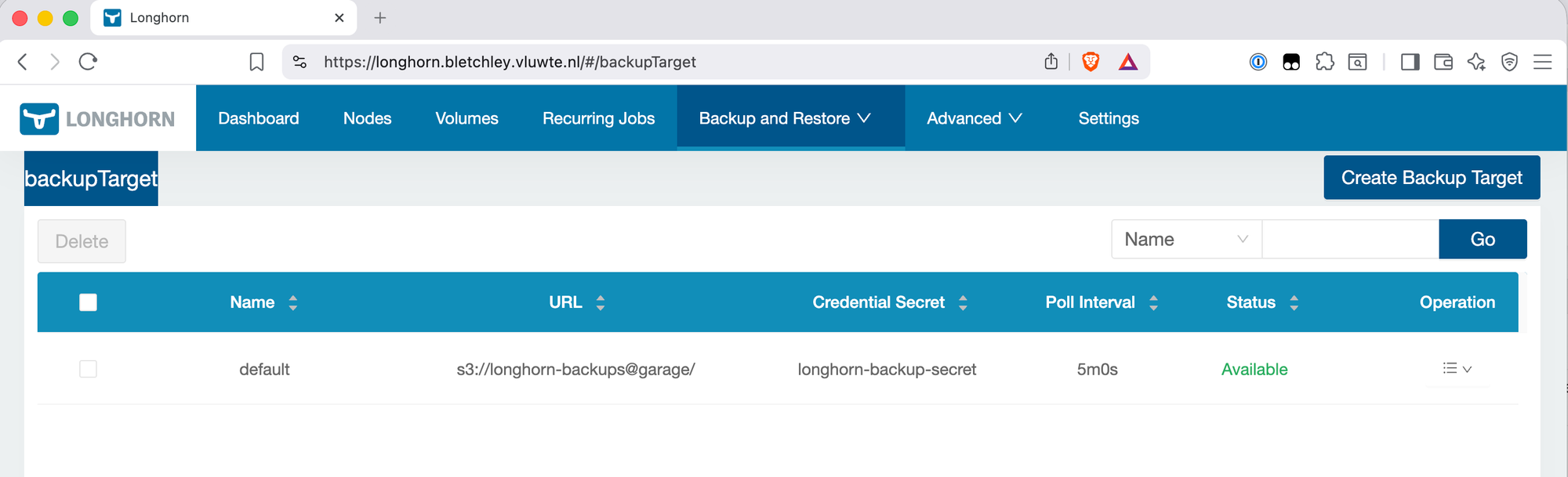
Verify the backup target is available:
kubectl get backuptarget default -n longhorn-system -o yaml
spec:
  backupTargetURL: s3://longhorn-backups@garage/
  credentialSecret: longhorn-backup-secret
status:
  available: true
  lastSyncedAt: "2026-03-11T21:33:23Z"
The URL format is s3://<bucket>@<region>/. The region garage matches the s3_region value in garage.toml. The status.available: true field confirms Longhorn can reach Garage and the credentials are valid.
First Backup
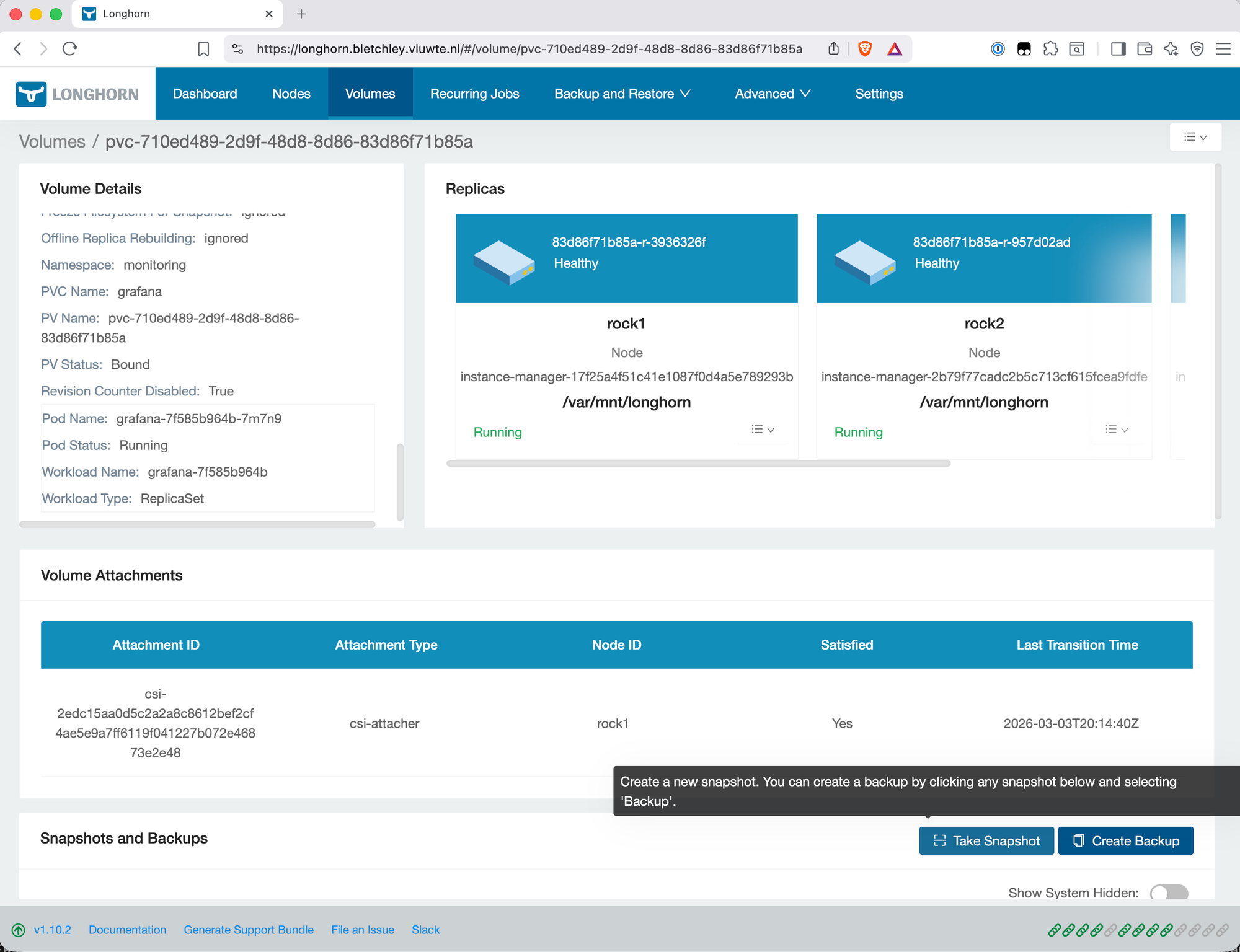
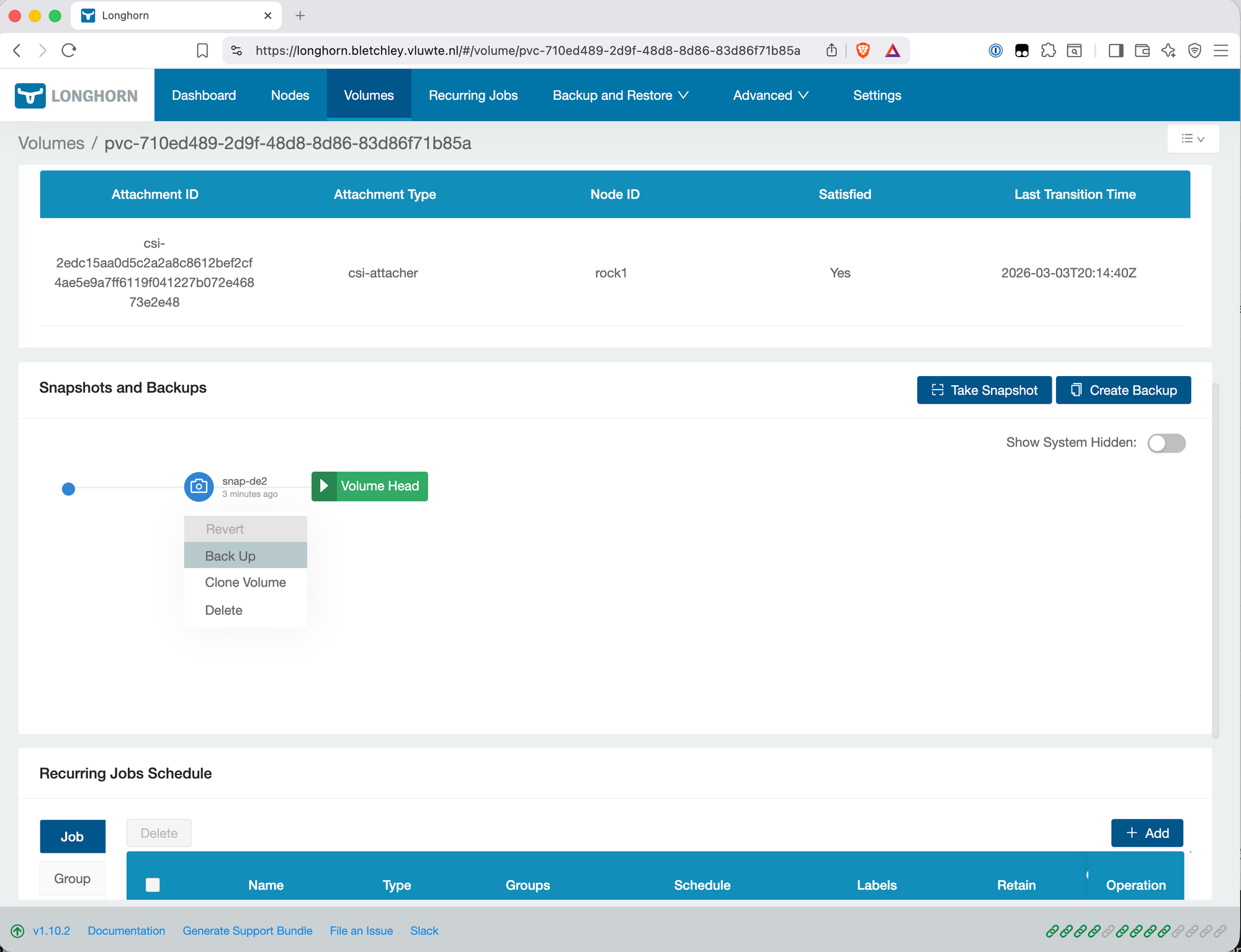
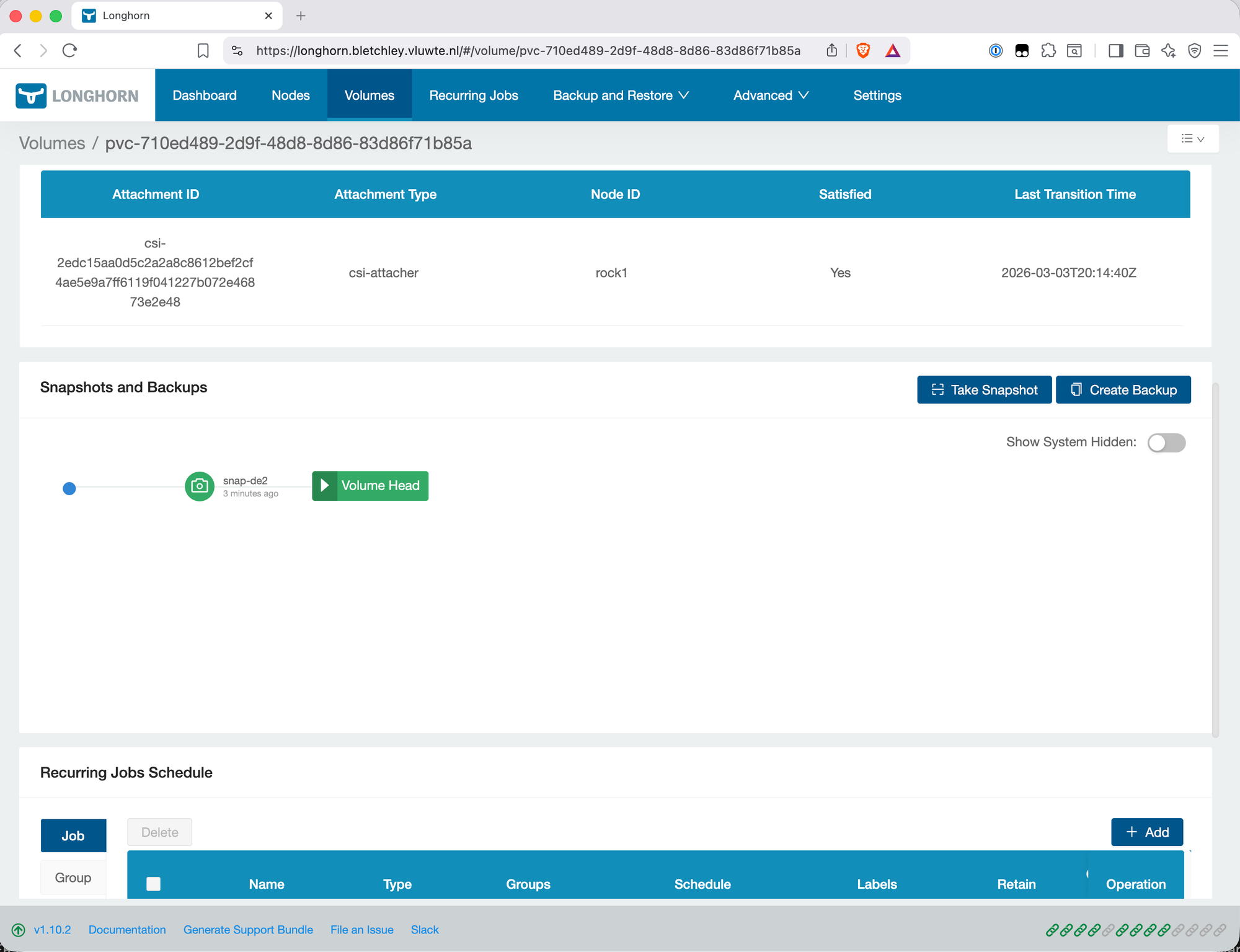
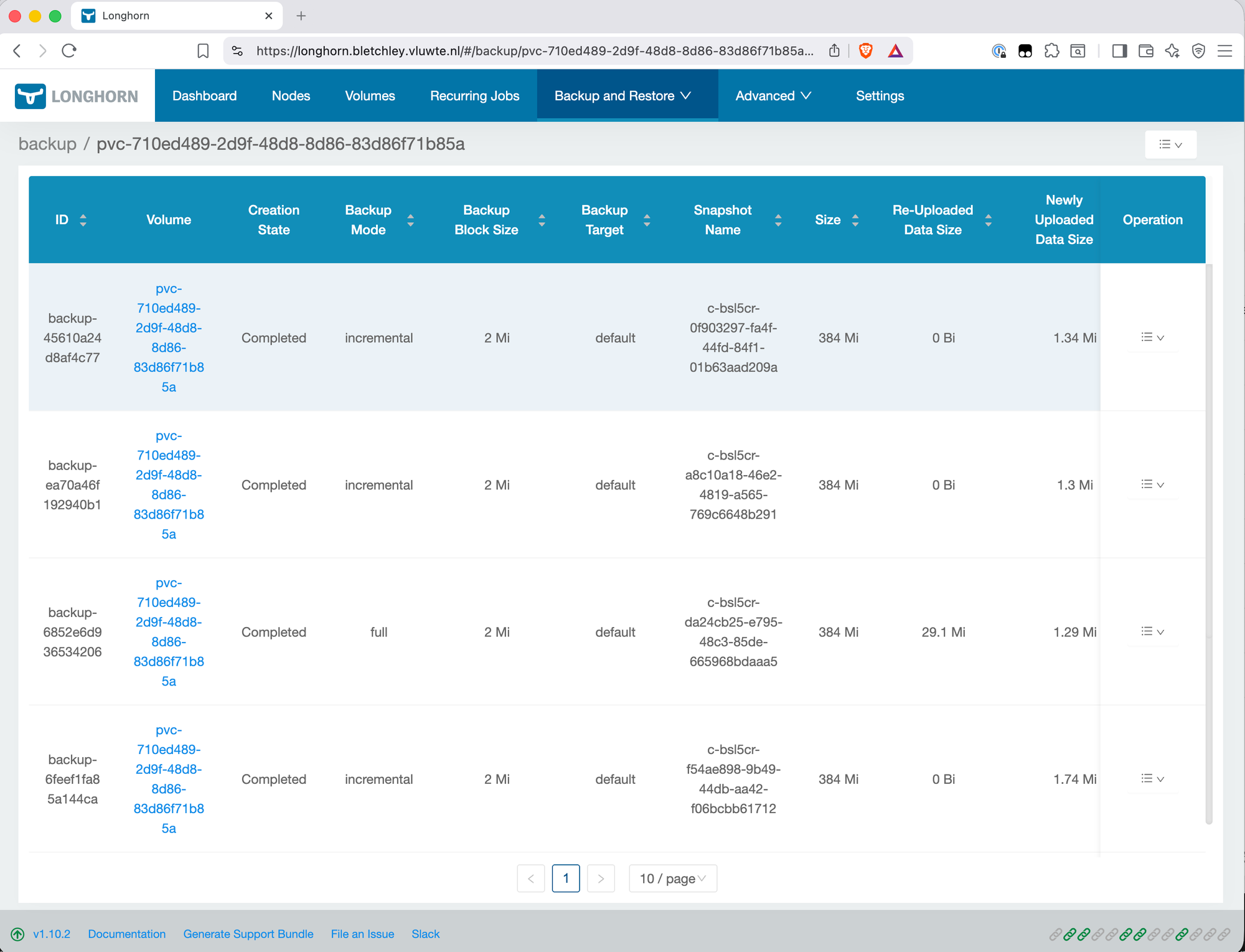
With the backup target available, trigger a manual backup to confirm the full path works. In the Longhorn UI, navigate to Volumes, select a volume, and create a snapshot followed by a backup from that snapshot.
After the backup completes, verify data is landing in Garage:
kubectl exec -n garage garage-0 -- /garage bucket info longhorn-backups
Expected output shows objects and size growing — confirmation that Longhorn is writing backup data to Garage successfully.
Recurring Backup Schedule
Manual backups aren't a backup strategy. Longhorn supports recurring jobs that run automatically on a schedule. A single backup job every four hours, retaining eight backups, covers the Grafana PVC:
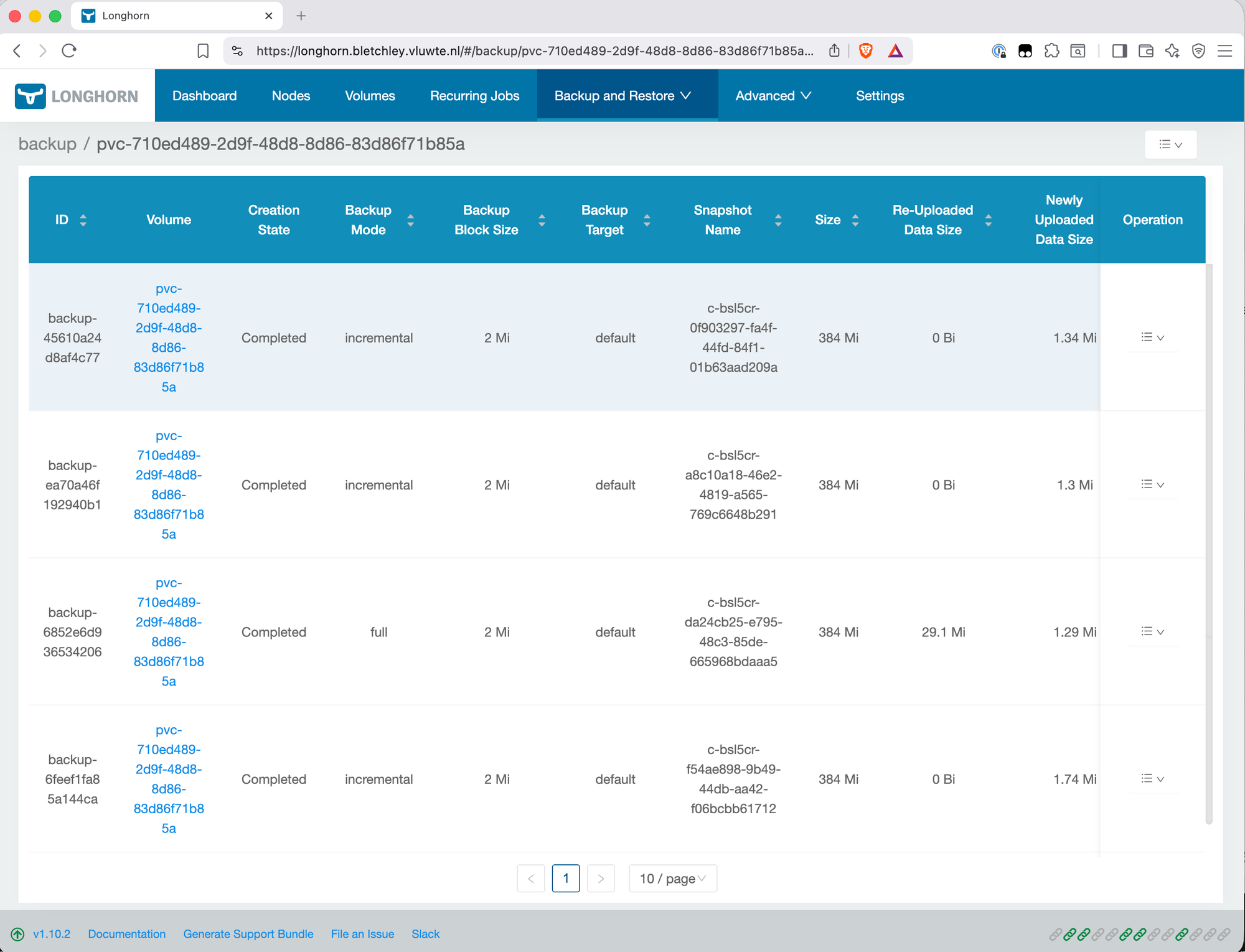
One thing worth noting: there's no separate snapshot job configured here. Creating a backup in Longhorn automatically creates a snapshot first — adding a separate snapshot job would create redundant snapshots that don't get backed up off-node. The backup job alone is sufficient.
What This Doesn't Cover
The rclone sync configured in the next post pulls the longhorn-backups and etcd-backups Garage buckets to the Synology. That's what this post sets up. It doesn't automatically cover anything else.
Two gaps worth naming explicitly:
Future Garage buckets — if a new workload stores data in Garage (a Nextcloud or Immich bucket, for example), that bucket won't be included in the rclone sync unless it's added to the sync script manually. It won't happen automatically when a new bucket is created.
NFS data — nothing currently backs up data stored on the NFS share. The ZFS mirror protects against a single drive failure, but it's not a backup. There's no workload using NFS yet, so there's nothing to lose right now — but a backup strategy for NFS data will need to be defined when that changes.
What's Working Now
- ✅ rock3 upgraded with
zfsextension added to existing image - ✅ ZFS mirror pool
datapoolon/dev/sda+/dev/sdb, ~923GB usable - ✅
datapool/garagedataset (500GB quota) mounted at/var/mnt/datapool/garage - ✅
datapool/nfsdataset (300GB quota) mounted at/var/mnt/datapool/nfs - ✅ NFS server running in
nfs-servernamespace,nfsStorageClass available for ReadWriteMany PVCs - ✅ Garage v2.2.0 running on rock3, S3 API at
garage-s3.garage.svc.cluster.local:3900 - ✅ Buckets:
longhorn-backupsandetcd-backupscreated, access keys in 1Password - ✅ Longhorn backup target configured declaratively via Helm values, status Available
- ✅ Recurring backup job: every 4 hours, retain 4
- ⚠️ Known limitation: rock3 is a single point of failure for both Garage and NFS. If rock3 is unavailable, backup writing stops and NFS-backed PVCs become inaccessible. Primary Longhorn storage on NVMe across the other nodes is unaffected. This is a conscious tradeoff for a homelab setup.
- ⚠️ Future Garage buckets and NFS data are not covered by the current rclone sync — each needs to be handled explicitly when a use case exists.
What's Next
The backup chain is half-built. Longhorn snapshots are landing in Garage on the local SATA SSDs — that's one copy. The second copy, off the cluster entirely, is the subject of the next post: exposing Garage externally via Traefik and HTTPS, and pulling the data to the Synology NAS with rclone.
← Previous: Certificate Management
→ Next: Offloading Backups to the Synology
Questions or suggestions? Leave a comment below or reach out at igor@vluwte.nl.