Longhorn Deep Dive: Replicas, Versions, and Upgrades
The decisions behind the Longhorn installation: why 2 replicas on a 1Gb cluster, how version pinning protects reproducibility, and when to upgrade.
Introduction
In a previous post I covered the installation of Longhorn on the Bletchley cluster — the steps, the commands, and the Talos-specific gotchas. This post is different. It's about the decisions behind that installation: why I chose 2 replicas instead of 3, why version pinning matters, and how to think about upgrades before you actually need to do one.
These are the kinds of choices that are easy to copy from a guide without understanding, and that's fine for getting started. But understanding them means being able to make informed adjustments as the cluster evolves.
🏠 This is part of the Homelab Journey series - building a production Kubernetes cluster from scratch.
- Setting Up Longhorn Storage on the Bletchley Cluster
- Longhorn Deep Dive: Replicas, Versions, and Upgrades (you are here)
- Cluster Observability Part 1
Replica Count: 2 vs 3
Longhorn's default replica count is 3. I changed it to 2. Here's why.
What replicas actually do
When Longhorn provisions a volume, it creates copies — replicas — and distributes them across nodes. All writes go to every replica synchronously, meaning data is confirmed on all copies before the write is acknowledged. If a node goes down, the volume remains accessible via its replica on another node.
This is not pooled storage. Longhorn doesn't create a single storage pool from all your disks — it creates per-volume replicas. A 10GB volume with 2 replicas consumes 20GB of raw disk across two nodes. A 10GB volume with 3 replicas consumes 30GB across three nodes.
How it looks on Bletchley
The diagram below is adapted from the official Longhorn architecture documentation and mapped to the Bletchley cluster's four nodes.
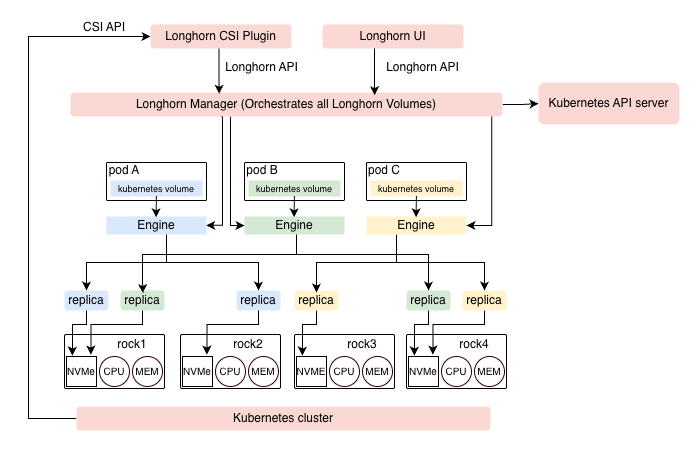
Three example volumes are shown, each colour-coded through the full ownership chain — from the pod's Kubernetes volume claim, through its dedicated Engine, down to the two replicas on disk:
- Pod A (blue) — engine running on the node where Pod A is scheduled, replicas on rock1 and rock2
- Pod B (green) — engine running on the node where Pod B is scheduled, replicas on rock1 and rock4
- Pod C (yellow) — engine running on the node where Pod C is scheduled, replicas on rock3 and rock4
A few things the diagram makes clear. Each volume has its own Engine — this is a dedicated microservice Longhorn creates per volume, not a shared component. The engine always runs on the same node as the pod using the volume, which is why the rshared mount propagation covered in the installation post matters: the engine creates block device mounts dynamically, and those mounts need to be visible to the kubelet on that node.
Replica placement is handled by the Longhorn Manager, which spreads replicas across different nodes to ensure that losing any single node doesn't take down a volume. Rock1 hosts replicas for both Pod A and Pod B — a node can hold replicas from multiple volumes simultaneously. Pod placement in the diagram is illustrative; Kubernetes can schedule a pod on any available node, and the engine follows wherever the pod lands.
The capacity trade-off
On the Bletchley cluster, each node has a 250GB NVMe. Four nodes gives 1TB of raw storage.
With 2 replicas, usable capacity is roughly 500GB. With 3 replicas, it drops to roughly 333GB.
Both configurations tolerate losing one node. The difference is purely how much of the raw capacity you get to actually use.
The 500GB figure is a useful headline number but it's optimistic — more on the real numbers when we look at what the Longhorn UI actually shows.
The network consideration
Every write to a Longhorn volume crosses the network to reach its replicas. On the Bletchley cluster, that's a 1Gb network. With 2 replicas, each write goes to 2 nodes. With 3 replicas, each write goes to 3 nodes. Under sustained I/O with multiple volumes active, 3 replicas generates noticeably more replication traffic.
For a cluster where network bandwidth is constrained — and 1Gb between nodes is constrained relative to modern NVMe speeds — this matters. With 2 replicas, each write crosses the wire once. With 3 replicas, it crosses twice.
What the official docs say
Longhorn's own best practices documentation recommends 2 replicas for homelab and resource-constrained clusters:
"Set the default replica count to '2' to achieve data availability with better disk space usage or less impact to system performance."
The default of 3 exists for environments where storage headroom is abundant and network is fast — production clusters on 10Gb or 25Gb fabrics where the extra replication cost is negligible.
Calculating usable storage
On the Bletchley cluster the math looks simple: 4 nodes × 250GB = 1TB raw, divide by 2 for replicas = 500GB usable. That's correct as a headline figure, but the reality is more nuanced — and the Longhorn dashboard makes it visible.
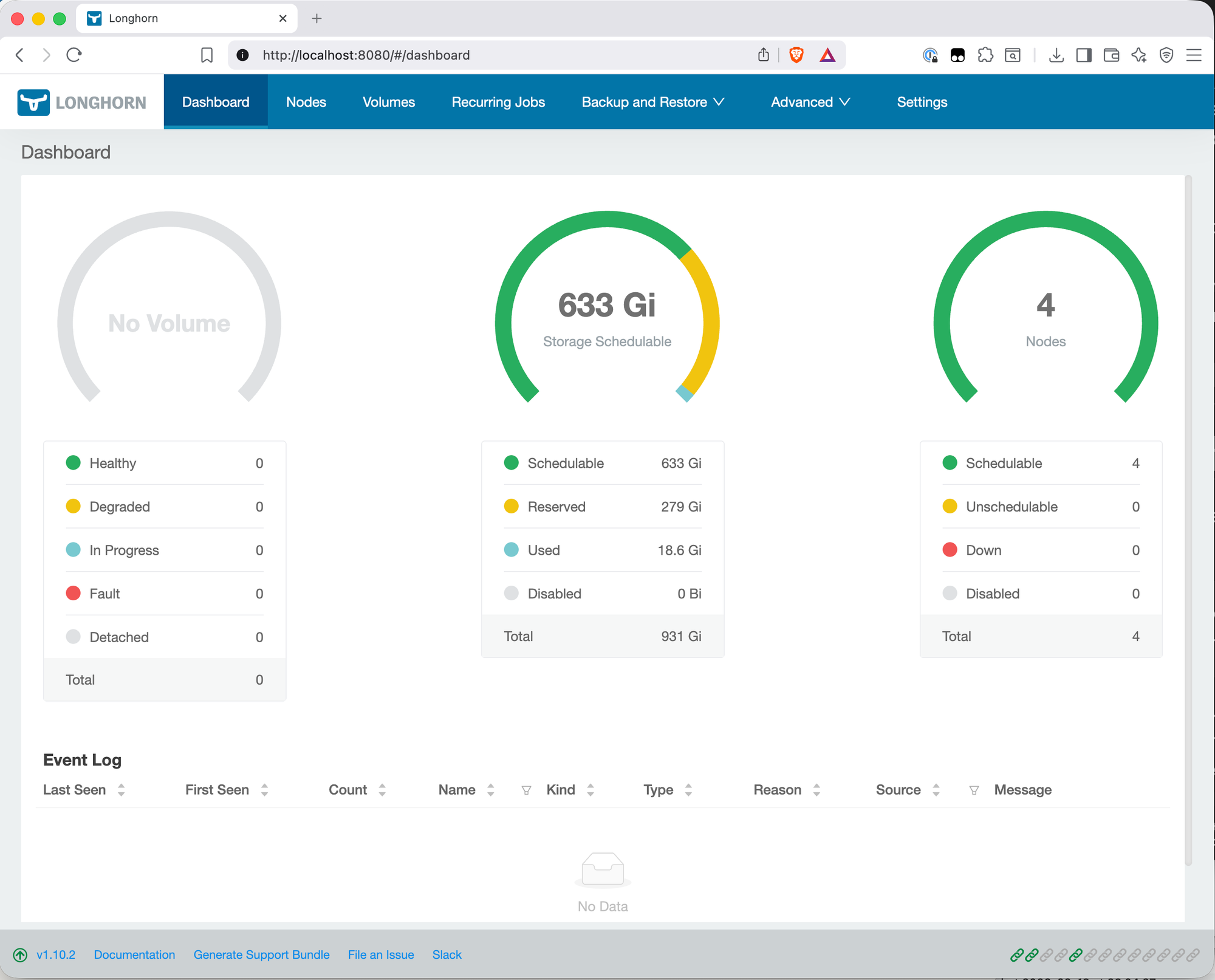
The dashboard shows the actual breakdown:
- Total: 931 Gi — this is the raw NVMe across all four nodes. 250GB per node in decimal becomes 232.8 GiB per node in binary, so 4 × 232.8 = 931 Gi. Nothing lost yet.
- Reserved: 279 Gi — Longhorn reserves 30% of each disk by default. This headroom exists so Longhorn can rebuild a replica when a disk is under load or near capacity. 4 × 69.8 Gi = 279 Gi set aside automatically.
- Used: 18.6 Gi — Longhorn's own system components (engine images, instance managers) already consuming space even with no user volumes provisioned yet.
- Schedulable: 633 Gi — what's actually available for volumes: 931 - 279 - 18.6 ≈ 633 Gi.
With 2 replicas, the real usable capacity is 633 Gi ÷ 2 = ~316 Gi, not 500GB. That's a meaningful difference from the headline figure. The 500GB number assumed full use of all raw capacity — the 30% reservation is why the actual number is lower.
The reservation percentage is configurable if you want to reclaim some of it, but the default exists for good reason. Longhorn needs headroom to rebuild replicas, and a disk that's perpetually near full is a disk that will eventually cause a rebuild to fail.
Longhorn doesn't support striping a single volume across multiple disks. Each volume lives entirely on one disk per replica — it can't span across the NVMe on rock1 and the NVMe on rock2 to create a larger logical volume. This is fundamentally different from how something like ZFS or LVM works. Longhorn is a replication engine, not a volume aggregator.
The maximum size of a single volume is limited by the smallest disk in the pool. On the Bletchley cluster all four nodes have identical 250GB NVMe drives, so this isn't a concern right now. But if you were to add a node with a 100GB disk, Longhorn would include that disk in the scheduling pool, and any volume placed on that node would be capped at 100GB regardless of what the other nodes have. Keeping disks uniform in size avoids this problem entirely.
In practice for this cluster: ~316 Gi schedulable with 2 replicas, no single volume larger than ~162.94 Gi per node (the schedulable size shown in the Nodes view). For typical homelab workloads — databases, git servers, monitoring stacks — this is more than sufficient. The constraint only becomes relevant if you're planning to store large datasets or media.
The decision
2 replicas for the Bletchley cluster. ~316 Gi schedulable, single-node failure tolerance, less replication pressure on a 1Gb network. This matches Longhorn's own recommendation for this kind of setup.
It's also not permanent. Replica count can be adjusted per-volume in the Longhorn UI or via StorageClass configuration. If a specific workload genuinely needs 3 replicas — say, a database where the cost of data loss is high — I can create a separate StorageClass with 3 replicas and use it just for that workload.
Version Pinning
Why pin at all
If you run helm install without --version, Helm installs whatever the chart repo currently marks as latest. That's fine for getting started, but it creates a problem: your documented setup and your actual setup start to drift the moment the repo updates.
Six months from now, if I need to reinstall — cluster rebuild, new node, disaster recovery — and I run helm install longhorn without a version, I might get 1.12.x with different defaults, different behaviour, or a configuration option that moved. I'd be debugging a mismatch I didn't know existed.
Pinning to 1.10.2 means the longhorn-values.yaml in ~/talos-cluster/bletchley/ and the chart version are a matched pair. Together they're a complete, reproducible description of what's installed. This is the same philosophy that came out of the first Talos attempt — the whole point of documenting everything is that future-me can rebuild this exactly.
Why 1.10.2 specifically
At the time of installation, 1.11.0 was the latest release. I chose 1.10.2 for a specific reason: 1.11.0 shipped with a known regression in the longhorn-manager image that can cause a startup deadlock under certain network conditions. A hotfix image (v1.11.0-hotfix-1) was released, but that means a non-standard install with extra steps. 1.10.2 is the latest stable in the 1.10.x line with no known issues.
The general principle: let .0 releases settle. Wait for at least .1 or .2 before adopting a new minor version. By then the known issues are documented, fixed, and the community has been running it long enough to surface anything that wasn't caught in testing.
Upgrades
When to upgrade
There are four signals worth watching:
Security advisories are the most urgent. Longhorn publishes CVEs through their GitHub repository. Watching the repo (Watch → Custom → Releases and Security Advisories) gives notifications when a vulnerability affects your version. This is a reason to act quickly regardless of anything else.
End of support for your version. Longhorn stops backporting fixes to older minor versions as newer ones mature. When 1.10.x stops receiving patch releases, you're on your own if something breaks. The release cadence makes this visible — once a new minor version is out and stable, the older line winds down.
A new minor version stabilises. Apply the same logic I used for choosing 1.10.2 over 1.11.0: wait for .1 or .2 of the new minor version, then upgrade. That's the practical trigger for a homelab.
Kubernetes version moves. Longhorn has minimum Kubernetes version requirements. If a Talos upgrade moves your Kubernetes version significantly, verify Longhorn compatibility before upgrading either. On the Bletchley cluster with Kubernetes 1.35 and Helm 4.1.1 reporting KubeClientVersion: v1.35, this is already something to keep in mind.
The one hard rule
Longhorn only supports upgrading one minor version at a time. Going from 1.10.x to 1.11.x is supported. Jumping from 1.10.x to 1.12.x directly is not — it will likely break things in ways that are difficult to recover from.
How to upgrade
When the time comes:
helm repo update

helm upgrade longhorn longhorn/longhorn \
  --namespace longhorn-system \
  --version 1.10.3 \
  --values ~/talos-cluster/bletchley/longhorn-values.yaml
Longhorn supports rolling upgrades — volumes stay online during the process. The manager pods update first, then the engine images on each node. The whole process typically takes a few minutes on a small cluster.
After the upgrade, update the version in longhorn-values.yaml and verify everything is healthy:
kubectl -n longhorn-system get pods
kubectl -n longhorn-system get nodes.longhorn.io
Then check the Helm release to confirm the new version is tracked:
helm list -n longhorn-system
The upgrade checklist
Before running helm upgrade:
- Read the release notes for the target version — look for breaking changes or special upgrade instructions
- Verify the new version supports your Kubernetes version
- Run
helm repo updateto pull the latest chart metadata - Test with
--dry-runfirst to catch any values mismatches - Upgrade one minor version at a time — never skip
- After upgrade, verify all pods are running and all nodes show
READY: True - Update the pinned version in
longhorn-values.yaml
What to Watch in the Longhorn UI
Once Longhorn is running, the UI gives a useful view into what's happening. Access it with:
kubectl port-forward service/longhorn-frontend 8080:80 -n longhorn-system
Then open http://localhost:8080. I'll set up proper ingress for the Longhorn UI once ingress is configured on the cluster — that's a separate post. Port-forwarding is sufficient for now.
The Dashboard
The dashboard, as shown in the Calculating Usable Storage section above, is the first thing you see after opening the UI. The three gauges show volume health (all zeros — no volumes provisioned), storage capacity, and node count. The storage breakdown is where the interesting numbers are, and as covered in the Calculating Usable Storage section above, the 931 Gi total breaks down into reserved, used by Longhorn itself, and schedulable. The clean event log confirms there are no errors.
The Nodes View
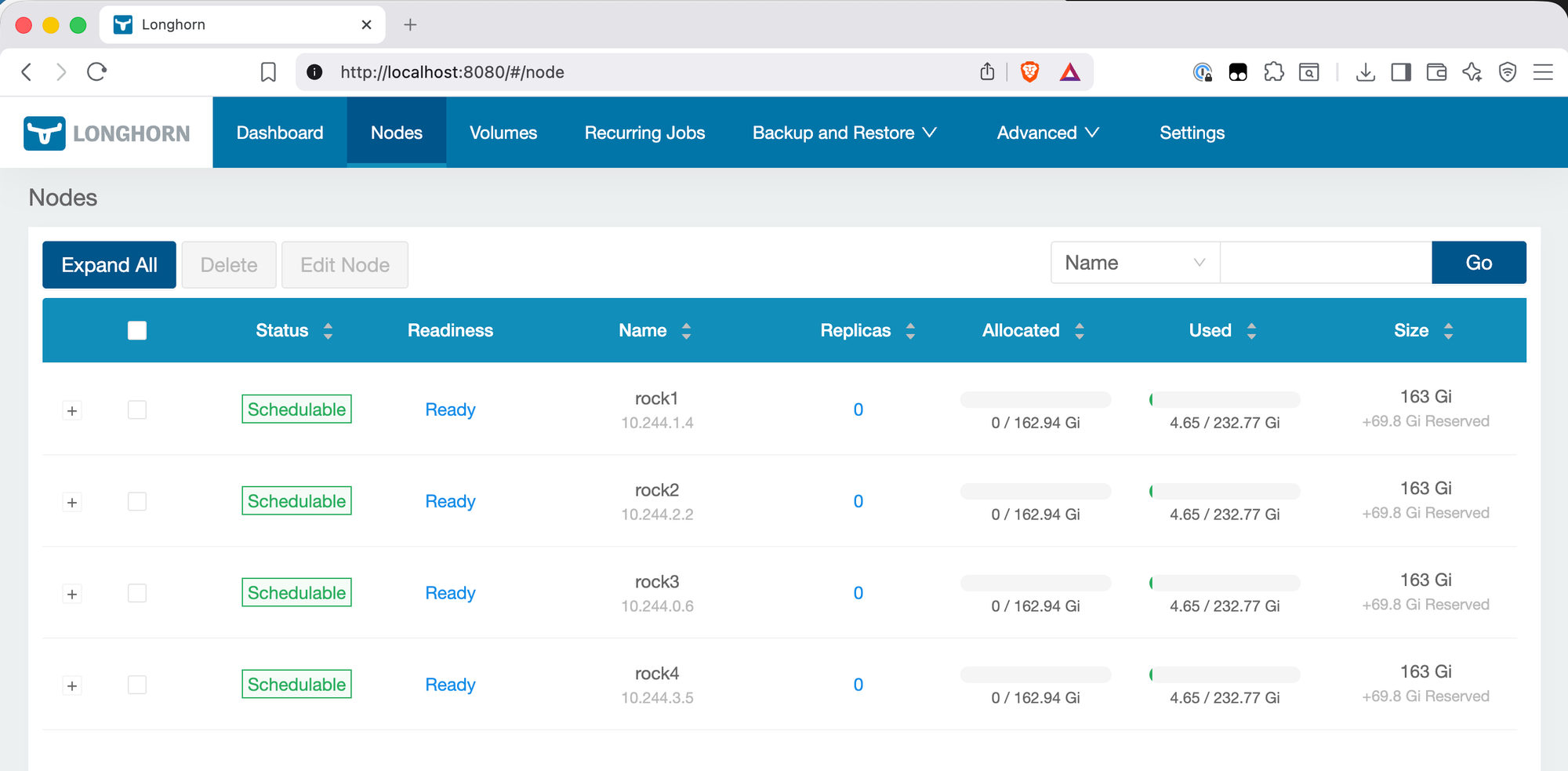
The Nodes view confirms each node is Schedulable and Ready, and shows the per-node disk breakdown. A few things worth noting here:
The size shows 162.94 Gi schedulable per node, not 232 Gi (the full NVMe size). The +69.8 Gi Reserved column is the 30% reservation in action — visible per node rather than just as a dashboard total.
The Replicas column shows 0 across all nodes — correct, since no volumes have been provisioned yet. Once workloads start creating PVCs, this is where you'll see replica placement: which volumes have replicas on which nodes, and the health of each.
The IPs shown (10.244.x.x range) are pod network addresses assigned by the CNI, not the node IPs. This is normal — Longhorn reports the IP of the longhorn-manager pod running on each node.
The Settings View
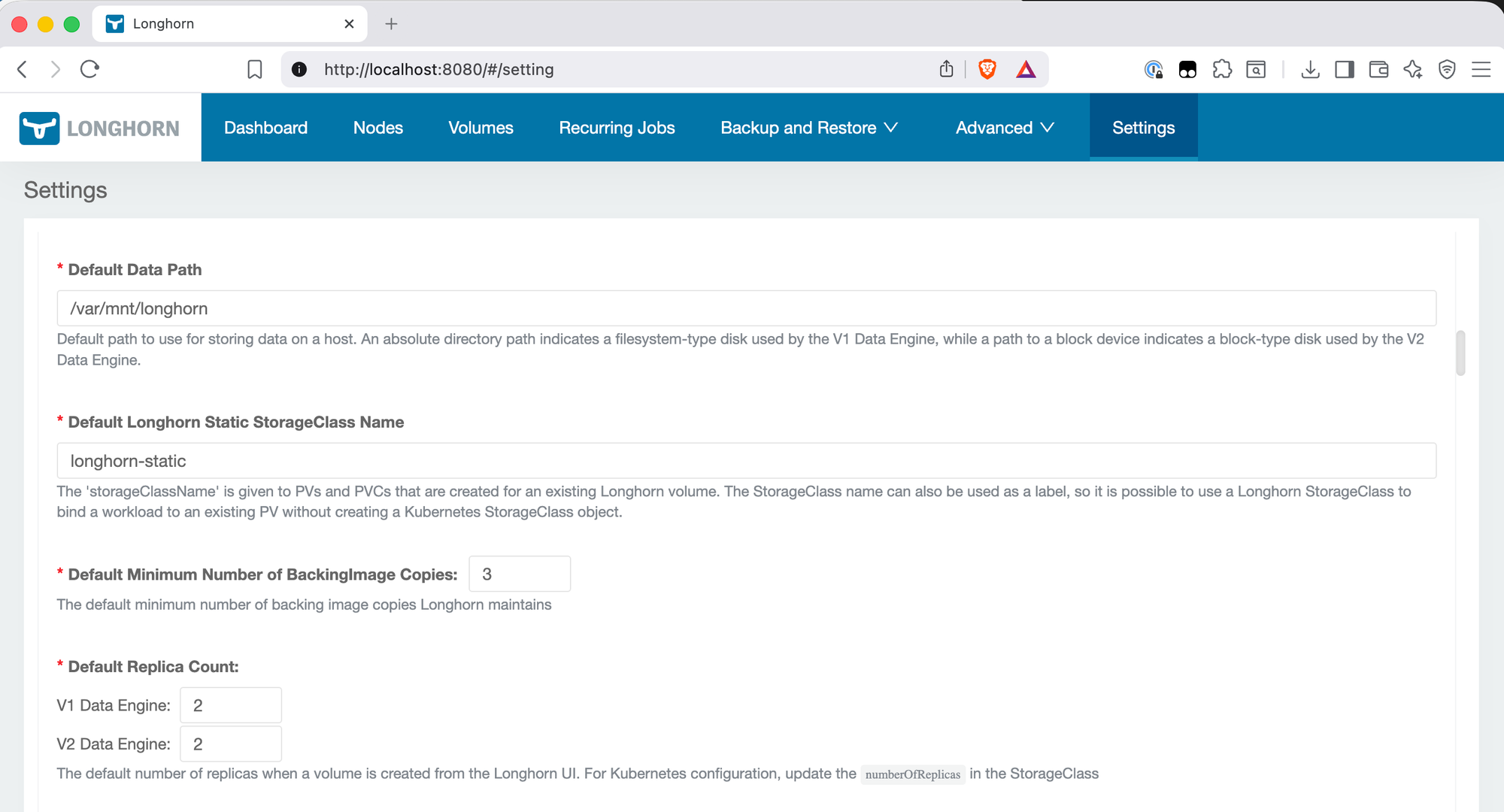
The Settings page is the confirmation that longhorn-values.yaml was applied correctly. Default Data Path shows /var/mnt/longhorn — the Talos-specific path from the values file. Default Replica Count shows 2 for both V1 and V2 Data Engine. The values file only set a single defaultReplicaCount: 2 value, but Longhorn applies it to both engine types automatically.
This is also where you'd come to change settings after installation — replica count, reservation percentage, data path — without needing to modify the Helm values and redeploy.
Are you running 2 or 3 replicas in your lab? I'd love to hear if the 1Gb network has been a bottleneck for you — leave a comment below or reach out at igor@vluwte.nl.
← Previous: Setting Up Longhorn
→ Next: Cluster Observability Part 1
Questions or suggestions? Leave a comment below or reach out at igor@vluwte.nl.